
Want a welcome message, game-night announcement, or community milestone to have a little more personality? An ASCII banner turns a short word into large lettering built from ordinary text characters.
To make ASCII art for Discord, enter a short phrase in the ASCII Text Art Generator, choose a style and width, then use Copy for Discord. Paste the result into a message and keep the practical details below the banner as normal text.
Start with something short: HI, RULES, RAID, or GG.
What is ASCII text art?
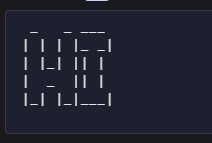
ASCII text art uses characters such as slashes, underscores, vertical lines, and spaces to form a picture or large letters. A text-art generator arranges those characters for you.
The finished banner contains several lines of text. Its shape depends on the position of every character, so spaces and line breaks are part of the design.
In Discord, display it in a multiline code block. This gives the artwork monospaced formatting, where characters occupy equal-width positions. Discord supports code blocks through its message-formatting system.
Four useful ways to use ASCII art in Discord
1. Welcome new members
A short HI or WELCOME banner can introduce your server’s welcome post. Follow it with the information a new member needs.
For example:
Welcome to Team Nova! Read the server rules, choose your roles, and introduce yourself. Tell us which games you play and your time zone.
Use the actual channel mentions in your server when directing members to those places. Keep those mentions outside the artwork.
A single banner at the beginning of a welcome post gives the message a recognisable opening without making every instruction decorative.
2. Introduce your server rules
Use RULES as the banner above your rules message, then write the rules in normal text.
For example:
Server rules: Be respectful, post in the relevant channels, and ask before advertising. Contact a moderator if you need help.
Adapt that wording to your own community. The banner is decoration; the rules themselves should remain easy to read, search for, and quote.
3. Announce a game night, raid, or event
Short headings such as RAID, DUO, or PLAY work well above event details.
For example:
Friday game night — 19:00 UTC. Beginners welcome. Reply with the game you want to play and whether you need a team.
Write the full event name, time zone, sign-up instructions, and any links below the banner. That way, someone can understand the announcement even if they skip the artwork.
4. Celebrate a win or milestone
Use GG, WIN, or 100 for a tournament result, a server anniversary, or a membership milestone.
For example:
GG, Team Nova! First tournament win together. Thanks to everyone who played, organised, and cheered us on.
Save larger banners for moments that deserve extra attention. Repeating them throughout an active conversation makes the chat harder to scan.
How to make an ASCII banner for Discord
Use the free ASCII Text Art Generator on StyleSnap. Everything runs in your browser — your text is not sent to a server for rendering.
Step 1: Enter a short word or phrase
Open the StyleSnap ASCII generator and replace the sample text.
One short word is the easiest starting point. Try HI for a greeting or GG for a celebration. Longer phrases use more space and may be arranged into several banner rows.
Step 2: Compare the three styles
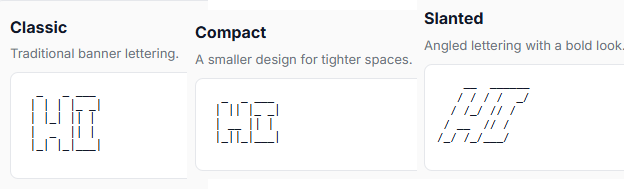
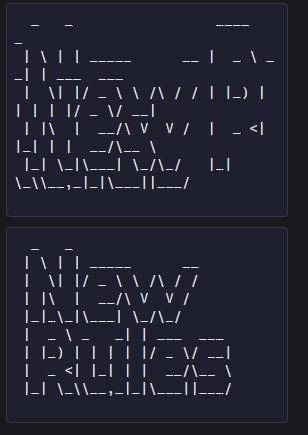
The generator displays three versions of the same text:
| Style | Appearance | A useful starting point for |
|---|---|---|
| Classic | Traditional banner lettering | General welcome and announcement posts |
| Compact | Smaller lettering | Messages where space matters |
| Slanted | Angled lettering | Gaming events and team celebrations |
Choose the version that is easiest to recognise at a glance. Compact is a sensible first choice if many members read your server on a phone.
Step 3: Choose a maximum width
Width is measured in text columns, not pixels. A setting of 40 columns limits the number of character positions across each output line; it does not mean you can enter only 40 letters.
Start with 40 columns for a short Discord banner. Try 80 columns if you need more room, then check how the result looks on a phone.
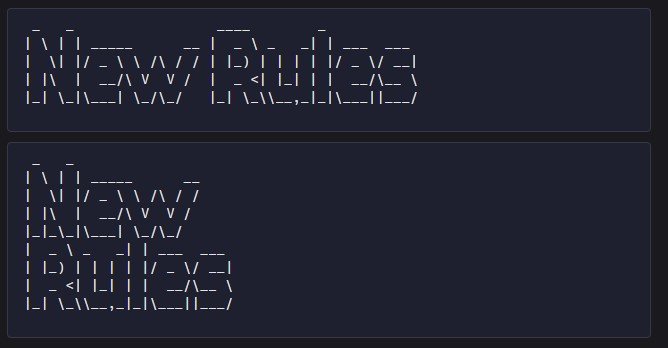
A narrower setting can wrap a phrase into additional banner rows, making it taller. If that looks awkward, shorten the wording or try Compact.
No width setting guarantees a perfect fit on every device. Screen size, zoom, and text settings can change how much of the banner is visible at once.
Step 4: Copy the Discord version
Click Copy for Discord beneath your chosen style and paste the result into a test channel.
This copy option includes the surrounding code-block formatting. Avoid adding another set of backticks if they are already present.
If you use Copy text instead, put three backticks on a separate line above the artwork and three more on a separate line below it.
Here is a small example you can paste, including the backticks:
```
  _   _ ___
 | | | |_ _|
 | |_| || |
 |  _  || |
 |_| |_|___|
```
Welcome to Team Nova! Read the rules, then introduce yourself.
The welcome sentence belongs outside the code block.
Paste the banner as plain text and Discord will squash the spacing — letters drift, lines wrap, and the art looks broken. Copy for Discord wraps it in a code block for you, so the shape actually survives the paste.
Step 5: Check the message on mobile
Before using the banner in a public announcement, view your test message on a phone.
Check that the word is recognisable, the artwork is not excessively wide, and the useful information remains easy to find.
If it takes too much space, try a shorter word first. Then compare Compact with your original style.
Keep banners readable and useful
Treat ASCII art as a decorative heading. Repeat the key meaning in ordinary text nearby, especially for rules, event names, and instructions. A screen reader may read the individual symbols rather than recognise the word drawn by them.
Keep links, channel mentions, and sign-up instructions outside the code block. Use one banner per announcement as a starting point.
Remember that the finished artwork can contain hundreds of characters even when you entered only a few letters. Discord’s standard message limit is 2,000 characters, increased to 4,000 with Discord Nitro. Leave room for the banner, its formatting, and your message.
Why does my ASCII art look wrong?
| Problem | What to try |
|---|---|
| The letters look uneven or symbols become formatting | Paste again using Copy for Discord and check that the artwork is inside a code block. |
| The banner is too wide on a phone | Shorten the word, choose Compact, or lower the maximum width. |
| A phrase appears as several stacked banners | Increase the width if space allows, or use a shorter heading. |
| Characters seem to be missing or shifted | Copy again directly from the generator and preserve all leading spaces and line breaks. |
| Discord reports that the message is too long | Shorten the banner or move the accompanying details to a separate message. |
Can I use this as my Discord username?
Use these multiline banners inside messages. They are unsuitable for the way Discord displays usernames, nicknames, and channel names.
If your goal is to personalise a name, use the Discord Fonts Generator for display-name presets, or try the bold text generator and monospace text generator for one-line Unicode styles. Discord treats username, display name, and nickname differently — see the name types table in our how-to guide.
An ASCII message banner also does not replace the image used as a server banner or profile background.
Browse more one-line Unicode options on the All Styles hub when you need something for a display name, bio elsewhere, or chat emphasis.
Make your first Discord text banner
Choose one place where a short heading would be useful: a welcome post, rules introduction, event announcement, or celebration.
Create your ASCII text banner in the ASCII Text Art Generator, compare the three styles, and use Copy for Discord. Add the useful details underneath, check the message on mobile, and it is ready for your community.
Frequently asked questions
Do I need a special Discord font for ASCII banners?
No. ASCII banners are ordinary characters. Put them in a Discord code block so they stay monospaced and aligned.
Should I wrap the banner in backticks myself?
Not if you used Copy for Discord — that option already includes the code fence. Adding another set can break the formatting.
Why does my banner look fine in StyleSnap but wrong in Discord?
Without a code block, Discord may treat some characters as formatting or display the text in a proportional font. Re-copy with Copy for Discord and paste into a fresh message.
Can I use emoji or accented letters in these banners?
The current ASCII generator supports printable English letters, numbers, spaces, and standard punctuation. For one-line Unicode styles with more character variety, try tools on the styles hub.